
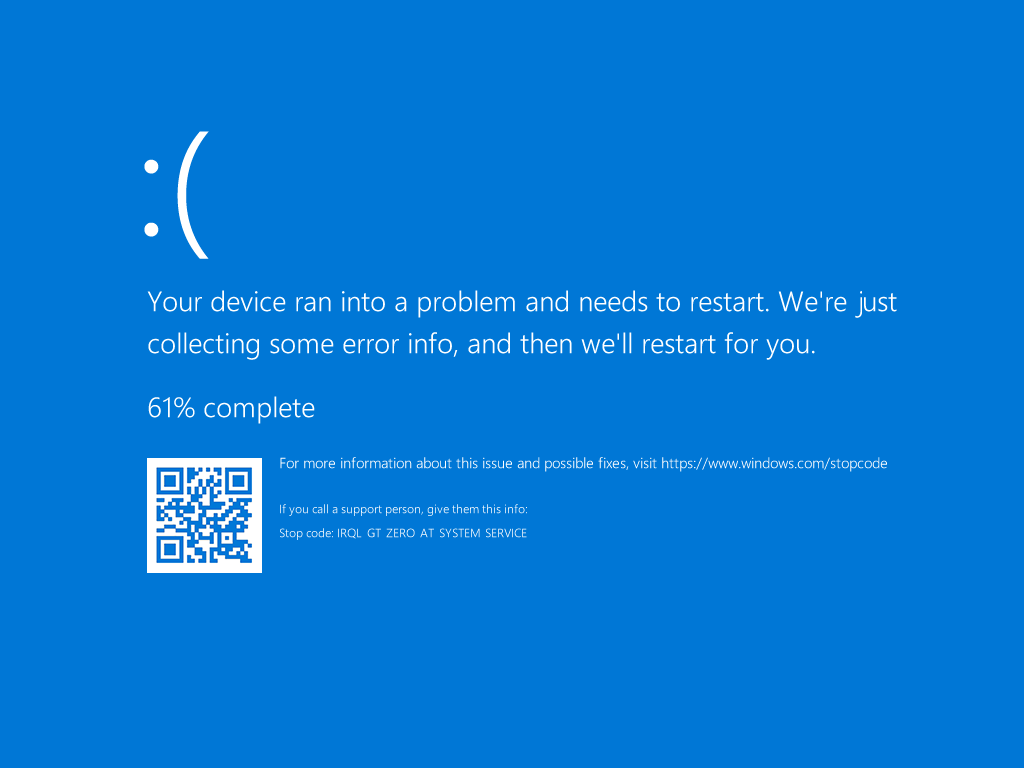

A Blue Screen of Death (BSOD) can feel dramatic, but at its core it’s Windows’ way of saying: “Something went wrong, and I had to stop to prevent damage.”
The real question is why it happened — and that almost always comes down to one of two categories:
- Hardware issues
- Software issues
Understanding the difference between these two is the key to diagnosing the problem properly. Everything else — drivers, tools, resets — flows from that first step.
Is It Hardware or Software? The First and Most Important Question
A BSOD is a symptom, not a diagnosis. To fix it, you need to determine whether the underlying cause is:
Hardware Issues
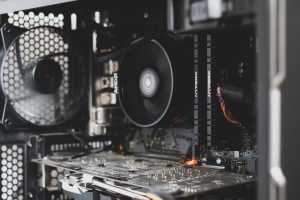
These involve the physical components of your computer. Examples include:
- Faulty RAM
- Failing storage drives
- Overheating CPU or GPU
- Power supply instability
- Motherboard faults
Hardware problems tend to be:
- Intermittent, especially when components heat up
- Consistent under load (e.g., crashes during gaming or heavy tasks)
- Unaffected by software changes
If the system crashes even after a clean reinstall, hardware becomes the prime suspect.
Software Issues
These involve anything Windows is trying to run or interact with:
- Corrupted system files
- Faulty updates
- Misbehaving applications
- Malware
- Incorrect or outdated drivers
- Recent configuration changes
Software problems often:
- Start after something changes (an update, a new program, a new device)
- Occur during specific actions (opening an app, connecting a device)
- Disappear after a reset or reinstall
This is why one of the first questions to ask is:
“Did anything change recently?”
A new printer driver, a Windows update, a GPU driver, or even a USB device can trigger a BSOD if something isn’t quite right.
The Grey Area: Drivers (Software That Looks Like Hardware Problems)
Drivers sit in an awkward middle ground. They’re software, but they interact directly with hardware. When they fail, they often look like hardware faults.
For example:
- A bad GPU driver can mimic a failing graphics card
- A corrupted storage driver can look like a dying SSD
- A faulty Wi‑Fi driver can cause system crashes that appear random
This is why driver issues are one of the most common BSOD causes — and one of the easiest to misdiagnose.
If you’ve recently updated a driver (or Windows updated it for you), that’s a major clue.
Using Tools to Narrow Down the Cause
Once you’ve considered recent changes and the general behaviour of the system, tools can help you confirm your suspicions.
WinDbg: Reading the Crash Dump
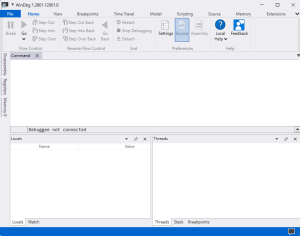
WinDbg is Microsoft’s debugging tool used to analyse the crash dump files Windows creates during a BSOD.
https://learn.microsoft.com/en-us/windows-hardware/drivers/debugger
How it helps
- It reads the .dmp file generated during the crash
- It identifies the module, driver, or process involved
- It can point to patterns (e.g., memory corruption, driver faults, hardware exceptions)
How it works (briefly)
- You open the dump file in WinDbg
- The tool symbolically analyses the crash
- It highlights the likely cause or the component that triggered the stop code
You don’t need to be a developer to get value from it — even a simple “this driver caused the crash” is enough to guide your next steps.
Windows Memory Diagnostic
Faulty RAM is one of the most common hardware‑related BSOD causes.
Windows includes a built‑in memory test that can help identify whether RAM is unstable.
If the memory test reports errors, hardware becomes the likely culprit.
If it passes cleanly, the focus shifts back to software or drivers.
When Software Is Suspected: The Role of a Clean Wipe
If you’ve:
- Checked recent changes
- Updated or rolled back drivers
- Run memory tests
- Analysed crash dumps
…and the BSOD still persists, the next logical step is to rule out software entirely.
A clean reinstall of Windows is the most reliable way to do this.
Why a wipe helps
- It removes corrupted system files
- It eliminates problematic drivers
- It resets configuration changes
- It gives you a known‑good baseline
If the BSOD continues after a clean install, the issue is almost certainly hardware.
If the BSOD disappears, you’ve confirmed it was software all along.
Putting It All Together
When you see a BSOD, think of it as a structured investigation:
- Did anything change recently?
- Does the behaviour point toward hardware or software?
- Could a driver be the middle‑ground culprit?
- What do the tools say?
- WinDbg for crash analysis
- Windows Memory Diagnostic for RAM
- If in doubt, wipe and test again
This approach removes guesswork and helps you avoid replacing hardware unnecessarily or chasing software ghosts.